
One of the most powerful functions of your Compliance Scorecard℠ is the ability to add additional users to help you manage and maintain your compliance obligations.
Users are assigned specific roles within an account:
Manager – the main user of the account. The Manager role is assigned by default to the user who created the account and has full access to the system. They can add, edit and suspend additional users, manage and delegate tasks and complete risk assessments. Only one user per account can be listed as the Manager.
Reviewer(s) – Users with the role of Reviewer have similar abilities to that of a Manager, with the exception of adding (or renewing) additional modules to the system.
User(s) – User roles can have tasks delegated to them by either the Manager or Reviewers on the account. Users can only see tasks that have been delegated to them. They do not have access to any other parts of the system (e.g., they cannot see the Compliance Scorecard metrics or any other tasks assigned to other users).
Typical Uses
One of the most common user configurations for managing your ComplianceBug account is as follows:
Manager – VP HR, Director HR, etc. who elects to receive Weekly (or Monthly) email notifications.
Reviewers – CEO, CFO, etc. who elects to receive Monthly (or Quarterly) email notifications.
Users – Benefits Manager, Payroll Manager, broker, CPA, etc. who elects to receive Weekly email notifications.
In the above example, Users would be responsible for managing most of the day to day activities assigned to them by their Manager or any of the Reviewers. As tasks are due, they would receive weekly notifications in an effort to not allow activities to fall through the cracks due to a missed deadline.
Their Manager could ensure all tasks are being updated regularly by ensuring they also receive weekly or monthly email reports.
Reviewers (e.g., senior leadership) can be kept informed by electing to receive their reports on a monthly (or quarterly) basis.
How to add additional users
Step 1
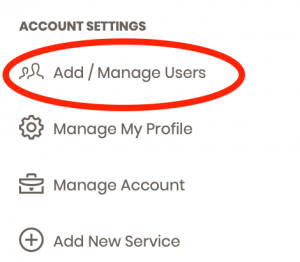
Along the left navigation column, choose the Add / Manage Users option from the Account Settings section.
Step 2 – Add New User
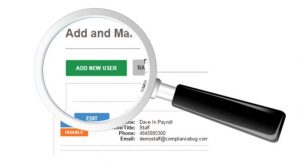
Click the green ADD NEW USER button and complete all required fields for your new user.
Step 3 – New User Account Activation
Once complete, your new user will receive an automated email from ComplianceBug explaining you created an account for them along with instructions on how to activate their new account.
You can now begin to assign/delegate activities to them.


